
Chapter 6 of the learn SEO course. Google Search Console is the one place where Google speaks to you directly about your site, and it is also the tool most beginners install and then never open again. The fault rarely sits with the tool, it sits with what people expect to find inside: many arrive looking for a score, a grade or a button that improves their rankings, and leave disappointed. What Google Search Console offers is both humbler and far more valuable, because it shows what Google genuinely sees of your pages. This chapter covers what the tool does, what it does not do, how to wire it up correctly on the first try, and the four reports a young site should actually spend time in.
TL;DR
Google Search Console is free and optional: Google states plainly that signing up is not required to appear in search results.
It exists to show whether Google crawls and indexes your pages, which queries they appear on, and what errors Google runs into.
The choice between a domain property and a URL prefix property happens at setup and shapes everything you see afterwards.
Four reports carry you through the first year: Performance, Page indexing, URL Inspection and Sitemaps.
Summarize This Article with AI
ChatGPTContents
What the previous chapter established
What Google Search Console does, and what it does not
Domain or URL prefix: the choice you make once
The four reports a beginner genuinely opens
What the previous chapter established
Chapter 5 dealt with E-E-A-T, the four letters covering experience, expertise, authoritativeness and trust. We saw there that Google attaches no hidden score to your domain, that the acronym comes from a document handed to human raters, and that three questions are enough to audit a page. If you skipped it, our walkthrough of what Google actually wants from your site through E-E-A-T is worth reading before this one.
This chapter shifts register. After five chapters spent understanding how Google works, we finally plug in the instrument that shows what it does with your pages. Everything ahead in this course, from picking keywords to fixing technical issues, will lean on data read here. Which is why an hour spent properly now beats the same hour spent three months from now.
What Google Search Console does, and what it does not
Let us start with the sentence that surprises people most. Google writes in its own help pages that registering for Search Console is not necessary to appear in search results. Your site gets crawled and indexed without it. The tool opens no door, grants no ranking advantage, and opening it lifts nobody. That clarification lives in the official help page introducing Search Console, and it deserves stating upfront to clear the most common misunderstanding.
What the tool brings comes down to five uses, described by Google itself. Confirm that Google can detect and crawl your site. Fix indexing problems and request a recrawl. Read your search traffic data, with impressions, click-through rate and queries. Get alerts when Google runs into an indexing, spam or other issue. Find out which sites link to yours. Five uses, no score, no automated recommendation. Those alerts deserve reading with some distance, since Google itself has already played down the reach of several of them, as we covered in our article on the Search Console errors Google downplays.
The value sits in what it shows you, never in what it advises. An SEO plugin gives you an opinion, a simulator gives you an estimate, Search Console gives you a reading. When it says a page is not indexed, it describes the real state of that page inside Google’s index, with no hypothesis and no estimate. That difference in nature explains why it stays the dashboard you keep open for years, long after you have swapped plugins or tracking tools.
Requirements are thin: a recent browser, cookies and JavaScript enabled, and a valid Google account. No installation, no subscription, no traffic cap. Google positions the tool for business owners, SEO and marketing specialists, site administrators and web developers, which covers roughly everyone reading this.
Domain or URL prefix: the choice you make once
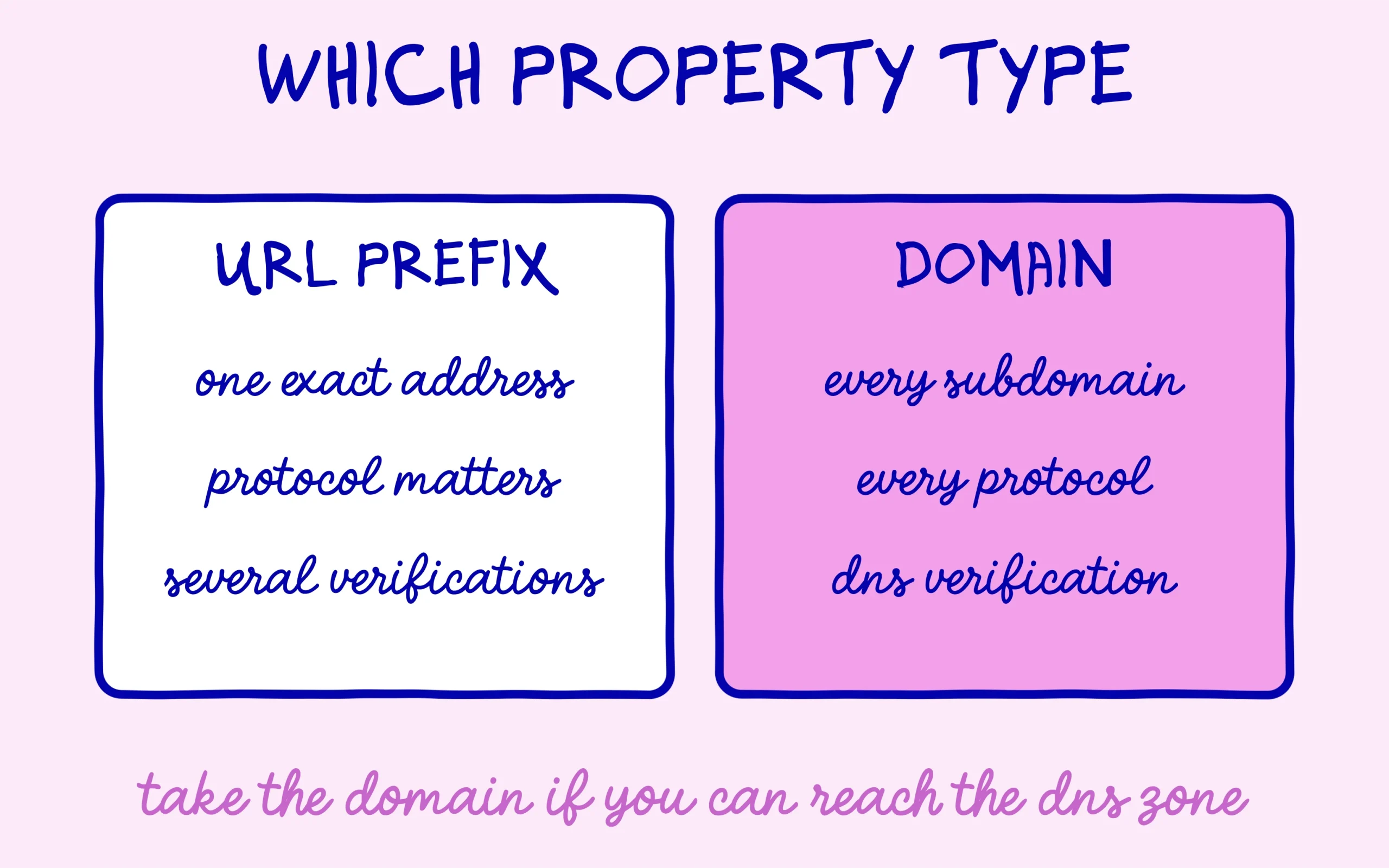
At signup, Google asks you to pick between two property types, and that choice shapes everything you see afterwards. A domain property covers an entire domain name: every subdomain and every protocol. A property set on example.com therefore reports data from the http version, the https version, the www subdomain, a mobile subdomain and any support subdomain, all inside a single view.
A URL prefix property works the other way round. It only covers addresses starting exactly with the declared prefix, protocol included. A property set on the https address of one folder will include the pages beneath it, while excluding the http version and excluding other subdomains. That comes in handy when you want segmentation, say to track a blog living in a subfolder separately.
The practical difference lands on verification. A domain property verifies through a DNS record only, unless the domain is hosted on a Google service. A URL prefix property accepts numerous methods, from an HTML file dropped at the root to a meta tag, by way of an Analytics or Tag Manager account. The full list sits in Google’s help page on verifying site ownership.
For a site getting started, the recommendation is straightforward. Take the domain property if you can reach the DNS zone of your domain name, which is the case with nearly every host. You will avoid the classic beginner situation of tracking data for six months on the www version alone, never noticing that half the traffic lands on the other one. If DNS access scares you, take the URL prefix for now and migrate later.
The four reports a beginner genuinely opens
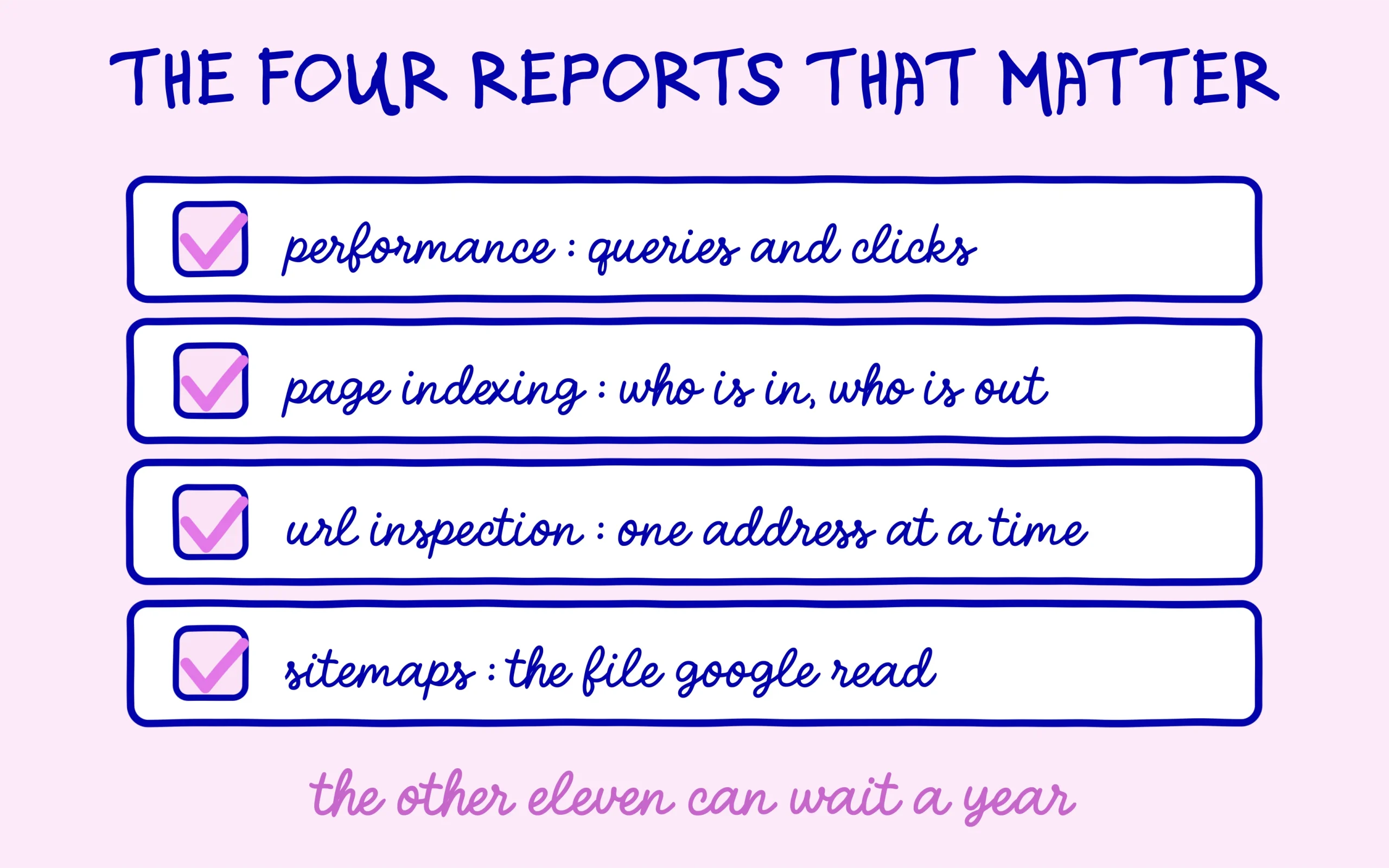
The interface offers around fifteen reports, and twelve of them will not serve you in year one. The Performance report speaks fastest: it lists the queries your pages appear on, how many times they were shown, how many clicks they earned and their average position. This is where you discover queries you never considered, and by far the most useful data for deciding what to write next.
That report reads through tabs, and the split is where its value sits. The Queries tab shows what people type, the Pages tab shows which of your addresses surface, the Countries and Devices tabs show from where and on what. The useful instinct is crossing two tabs rather than reading the first one alone. A query pulling plenty of impressions and no clicks tells you a title is not landing. A page surfacing on queries unrelated to its subject tells you it has been misread.
The Page indexing report answers one question: how many of your pages sit in the index, and why the others do not. Every non-indexing reason is named, which lets you separate normal exclusions from genuine problems. The mechanism behind entering the index, and the reasons behind a refusal, were covered in chapter 2 through our piece on what indexing really means and why Google sometimes refuses your pages.
URL Inspection works page by page. You paste an address, the tool tells you whether it is indexed, when it was last crawled, and what Google saw when it loaded the page. It is also where a recrawl request starts after a fix. The full procedure is laid out in our step by step on checking your site’s indexing in Google.
The Sitemaps report, finally, exists to declare the file listing your pages and to confirm Google read it. On WordPress that file gets generated by your SEO plugin without you writing a line, and declaring it takes two minutes. Our tutorial on creating and submitting an XML sitemap on WordPress walks through the whole operation.
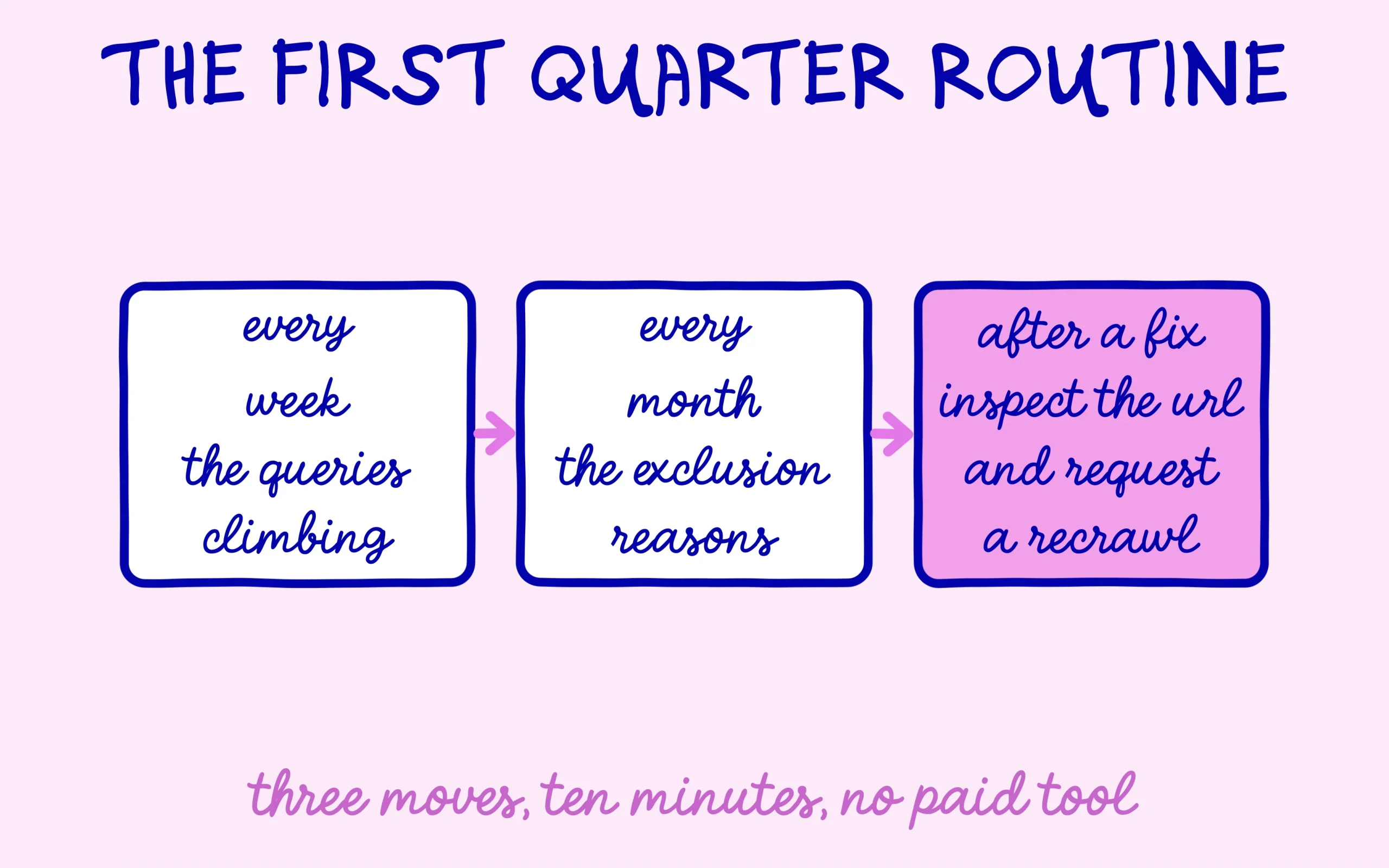
One simple routine carries you through the first quarter. Once a week, open the Performance report on the last twenty-eight days and note the three queries climbing. Once a month, open Page indexing and check that no new exclusion reason appeared since last time. After every meaningful fix, run the affected address through URL Inspection and request a recrawl. The rest of the interface can wait until next year without costing you anything.
Two reports outside that shortlist deserve a mention so you know they exist. Links shows which sites point at yours and which of your pages receive the most of them, which becomes interesting once you have something worth linking to. Core Web Vitals reports on loading behaviour measured from real visits, and it only produces usable data once a site carries enough traffic. Both matter later, neither should occupy a beginner in the first months.
The reading traps that cause panic for nothing
The first trap involves lag. Search Console data arrives two to three days behind, and the most recent days shown stay incomplete until consolidation finishes. A beginner comparing today against yesterday therefore sees a drop that does not exist. Get into the habit of comparing twenty-eight day windows, never isolated days.
The second trap involves average position, the most misread number in the tool. It blends every query and every page across the chosen period. When new distant queries enter the calculation, the average worsens while the site improves. An average position sliding from 45 to 62 may well mean Google started testing your pages on far more queries.
The third trap involves alerts. An error message inside Search Console does not always call for action, and the exact wording makes all the difference between a notice and a problem. Read it in full before changing anything, because a fix triggered by a misread alert usually creates the real problem.
One current issue is worth knowing even though it sits beyond this chapter. Queries coming from Google’s generative surfaces now sit mixed in with the rest inside the Performance report, which makes it hard to tell what came from classic search. The detail is explained in our article on the AI Mode queries Search Console blends with the others. Take away this much: reading the data calls for more caution today than it did two years ago.
A fourth trap catches people who own several properties. Data does not move between them, so a domain property created today will not inherit the history sitting in the URL prefix property you set up last year. Nothing gets lost, the two simply live side by side and each starts counting from its own creation date. Plan the switch early rather than discovering the gap the day you want to compare two years.
Where we go in the next chapter
This chapter handed you the instrument. The Performance report already shows queries your pages appear on, and that is exactly where the next piece of work begins. Chapter 7 opens the module on keywords and asks the base question: what is a keyword, and why are some of them worth so much more than others.
Until then, one action matters this week. Create your property, verify it, and let the tool gather data. It will show very little in the first days and that is normal, since it does not backfill the past. The earlier you connect it, the more history you hold on the day you genuinely need it. Verifying a property takes about ten minutes with DNS access, and it is the kind of small task that quietly pays for itself a year later.
Keep learning on SEO Noobies.



[…] the free tool that shows you which pages actually lost impressions is the one we walked through in our guide to reading Google Search Console properly. Ranking recovery starts with knowing what really broke, and the rest is a matter of […]