
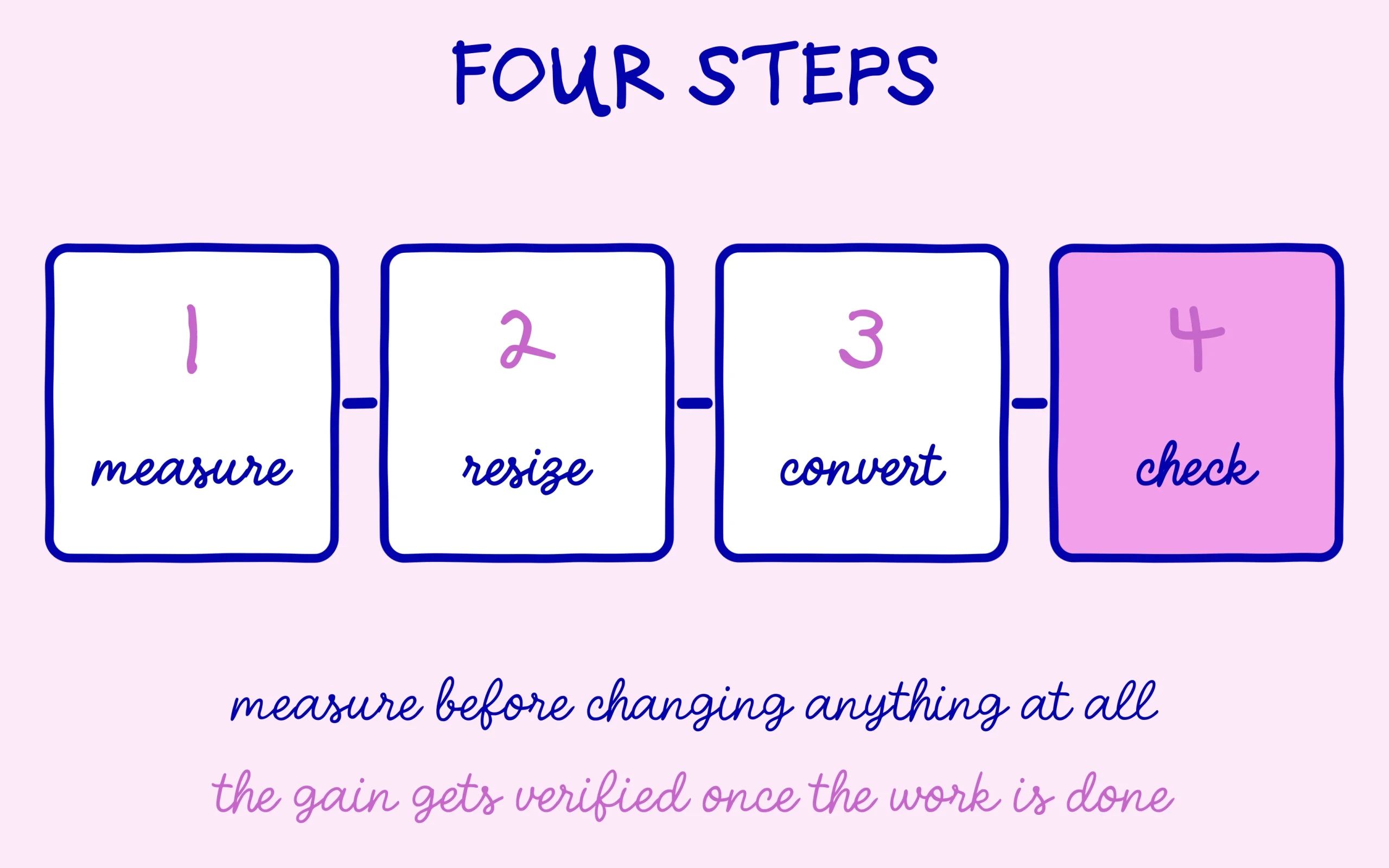
You publish a post with three good photographs, open it on your phone, and watch it take four seconds to appear. Nine times out of ten the culprit is right there on the screen: WordPress images uploaded exactly as they came out of the camera or the stock library, with no preparation at all. This walkthrough takes the problem in order, using the only sequence that works: measure, resize, convert, check again. No code, nothing risky, and a visible result on the very first page you treat.
TL;DR
A full-resolution upload usually weighs ten to thirty times what its actual display size requires.
Measure first with PageSpeed Insights and your browser inspector, before changing anything at all.
Resizing to the theme’s real display width delivers the biggest single gain, ahead of any format conversion.
A WebP conversion plugin plus lazy loading finishes the job on the media library you already have.
Summarize This Article with AI
ChatGPTWhy picture weight decides how fast the page feels
A standard WordPress page is made of text, stylesheets, scripts and pictures, and WordPress images almost always take first place by volume. The text runs to a few dozen kilobytes, the styles and scripts to a few hundred. One photograph straight from a recent phone can weigh several megabytes on its own, more than everything else on the page put together. That imbalance is why a well-built site can still feel slow.
The metric Google watches first is Largest Contentful Paint, the moment the biggest visible element finishes loading. On an article, that element is almost always the featured image. Until it lands, the browser treats the page as unfinished and the clock keeps running. Trimming that one file moves the score directly.
There is more at stake than reader comfort. Crawlers working for search engines and generative assistants get a limited budget per site, and slow pages burn through it faster. We went through that mechanism in the PageSpeed score built for agentic browsing, where speed stops being a nicety and starts acting as a condition of access.
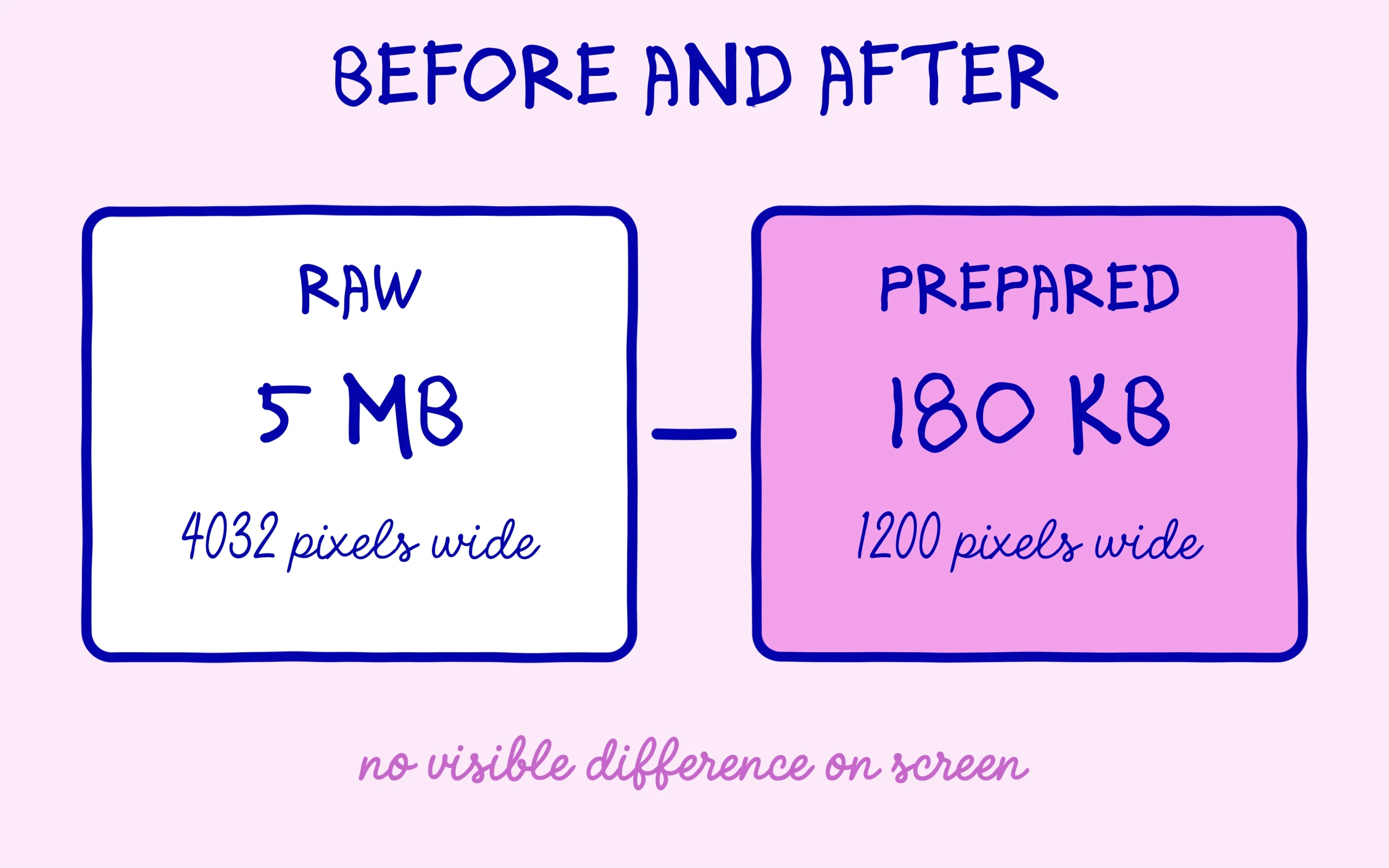
One reassurance before touching anything. Making a picture lighter does not mean making it look worse. Displayed at 900 pixels wide, a photograph saved at 120 kilobytes is indistinguishable from the same shot at 3 megabytes. Everything removed is either pixels nobody sees or camera data written for print.
Finding the WordPress images that actually slow you down
Start with PageSpeed Insights, the free measurement tool Google publishes. Paste the address of one of your posts, run it, and scroll to the recommendations. Two lines matter: the one about properly sizing images, and the one about serving next-generation formats. Both list the offending files with the saving available in kilobytes.
The second reading happens in the browser and teaches you more. Right-click a picture on your page, choose inspect, then hover over the file address. The browser shows two numbers: the file’s real pixel dimensions, and the size it is being displayed at. A 4032-pixel file squeezed into a 780-pixel column tells you the scale of the waste in one glance.
Write that display width down, because it becomes the reference for all your WordPress images from now on. Depending on the theme, the content column of a post usually falls between 700 and 1200 pixels. That is your useful ceiling. No file should exceed twice its display width, the doubling being there purely to stay sharp on high-density screens.
Two numbers are worth separating while you read those reports, because beginners often merge them. Dimensions are the pixel width and height of the file. Weight is how many kilobytes travel across the network. A picture can be modest in dimensions and still heavy, typically a screenshot saved as PNG, and it can be enormous in dimensions yet reasonably light once compressed. The fix differs in each case, so note both figures.
One last diagnostic before acting: open the media library and sort by file size. No plugin is needed for that view. You will see immediately whether you are dealing with ten heavy files or three hundred, and the answer changes the method entirely.

Resizing before upload, the step that pays most
The most effective fix is also the dullest, and it happens before the file reaches the site. Open the picture in your computer’s preview app or any browser-based editor, set the width to the number you noted, and save at 80% quality. A 5-megabyte photograph routinely drops below 200 kilobytes through that single step, with nothing visible lost on screen.
Make it a habit for every new upload. WordPress does generate intermediate sizes on import, but it also keeps the original, and some themes or page builders reach for the largest version without telling you. Uploading a file already cut to size removes the problem at the source instead of trusting the theme to behave.
For a library that is already full, manual resizing stops being realistic past a few dozen files. That is where a plugin earns its place, with a bulk function that walks the library and regenerates every file to a maximum width you define. Run it overnight, on a site whose backup you have just confirmed.
The classic mistake here is running the whole library at once on a modest shared host. Bulk processing is heavy and can take the site down for a few minutes. Work in batches of one or two hundred files, outside peak hours, checking a couple of pages between batches.
Converting to WebP and switching on lazy loading
WebP produces noticeably smaller files than JPEG at equivalent quality, and every current browser displays it. It is the format to converge on for your WordPress images. Conversion goes through a plugin: EWWW Image Optimizer, which runs on most of the sites we follow, ShortPixel or Imagify do the same job. The principle is identical in all three cases. The plugin builds a WebP copy of each file, serves it to the visitor automatically, and keeps the original in reserve.
Then turn on lazy loading, usually labelled as such in the settings. It delays downloading anything further down the page until the reader actually scrolls there. On a post carrying eight visuals, only the first one loads at open, which lightens the start considerably without removing a thing from the article.
One exception is worth knowing, because it produces the opposite of the intended effect. The featured image at the top of the post must never be lazy loaded: that is precisely the file the browser waits for before calling the page ready. Most plugins offer to exclude the first images from the rule, and that box deserves ticking.
While you are in there, fill in the alt text on each file, the one-line description stored in the media library. It serves readers using a screen reader first, and it is the only machine-readable description of the picture you control. What generative engines do with visuals remains an open question, as our coverage of AI Overviews drawing its own images without crediting sources showed.
Checking that the gain is real once you are done
Run the same page through PageSpeed Insights again, on the mobile tab, and compare with the earlier reading. Both image recommendations should have gone, or dropped to savings too small to matter. If they persist, the plugin is probably still serving the originals, which happens when a cache has not been cleared after conversion.
Check the visual result on three or four pages too, including your home page and one old post. A conversion set too aggressively shows grain, particularly on screenshots containing small text. Raise the conversion quality to 85 or 90% in the plugin settings and reprocess those files.
Keep the originals somewhere safe as well, at least until you are satisfied. Most plugins offer to store a backup copy of each file for a limited period, which costs disk space and buys you a way back if a batch comes out wrong. Once a fortnight has passed and nothing looks broken, that option can be switched off and the stored copies cleared.
A word on stacking plugins, which always ends badly. One plugin handles images, and only one. Two tools converting in parallel leave duplicates in the uploads folder and behave inconsistently from page to page. The broader point sits in what your WordPress plugins quietly allow themselves, worth reading before installing another one.
One habit to keep, once a quarter. Sort the media library by file size again and look at which WordPress images have arrived since your last pass. A living site collects visuals uploaded in a hurry, by you or by whoever writes for you, and the average weight creeps back up. The check takes five minutes and saves repeating the whole job next year.

Keep learning on SEO Noobies.