
Your WordPress plugins can grant themselves permanent access to your site, and the list of those grants sits in a screen almost nobody opens. Sometimes you find entries there you never created yourself, dropped in by WordPress plugins during an install or an update. The topic came back into the news at the end of August, but the exercise is worth doing whatever you happen to have installed. No code required, everything happens inside your own admin, and it takes about ten minutes.
TL;DR
WordPress plugins can mint permanent keys to your site through its API, separate from the password you log in with.
The list lives under Users, then Profile, in the Application Passwords section at the bottom of the page.
Each key inherits the rights of the account that created it: on an administrator account, it grants administrator access.
Any line you cannot account for can be revoked safely, and a legitimate tool will simply hand you a new one in thirty seconds.
Summarize This Article with AI
ChatGPTWhat application passwords actually open
Since version 5.6, WordPress has shipped an authentication mechanism built for machines rather than people. The starting idea is sound: when an external application needs to talk to your site, a mobile app, a publishing tool, a backup script, the last thing you want is to hand it your real password. So you mint a dedicated key instead, revocable on its own, useful for that one purpose.
These keys are called application passwords, and the official WordPress documentation describes them as credentials meant for API authentication, never for interactive browser logins. Nobody can walk into your dashboard with one. A program, on the other hand, can use it to read and write through the site’s technical interface.
Here is the part that escapes most beginners and changes everything: a key inherits exactly the rights of the account that made it. Generated from a contributor account, it cannot do much. Generated from your administrator account, it can publish, edit, delete, install. The interface does not make that distinction obvious, and it is the single thing worth remembering from this article.
Second trait to know: these keys do not expire. One created two years ago for a service you dropped long ago still works today unless you revoked it by hand. Changing your regular login password does nothing to it either, since the two mechanisms run independently of each other.
The spare key analogy helps. You do not hand your full keyring to the person watering your plants, you hand over one key you can take back later without changing every lock in the flat. WordPress follows exactly that logic, and the principle was never the problem. The trouble is that these keys pile up quietly, in a screen nobody opens.
Why this resurfaced at the end of August
The subject left technical circles in the past few days because of a widely installed SEO plugin. In late August, Rank Math shipped a support feature that generated an application password the moment an administrator opened the plugin’s help panel, without the screen spelling that out beforehand. The key then showed up in the user profile under a label referencing the support agent.
The vendor moved quickly. Rank Math documented pausing the feature in version 1.0.277.2 and acknowledges that the plugin did not communicate clearly enough that credentials were being generated. The company adds that the credentials were not stored on its side and that the agent operated read-only. The feature is due back with an explicit permission request.
Staying factual matters here, because the story travelled with a lot of shortcuts attached. The update did not plant a malicious backdoor, it created a technical access without saying so loudly enough. That distinction matters when judging the vendor. It changes nothing about your own to-do list though: a key that got created stays created, and the vendor note says nothing about the ones already sitting on your site. If you want a broader read on the plugin itself, our full review was written well before this episode.
The wider point stretches far past one isolated case. Plenty of WordPress plugins and outside tools connect to your site through its technical interface, and the trend is accelerating as automated assistants spread. Checking what sits in that screen is becoming ordinary maintenance, on the same footing as looking at who holds an administrator account on your site.
Where to find the list on your own site
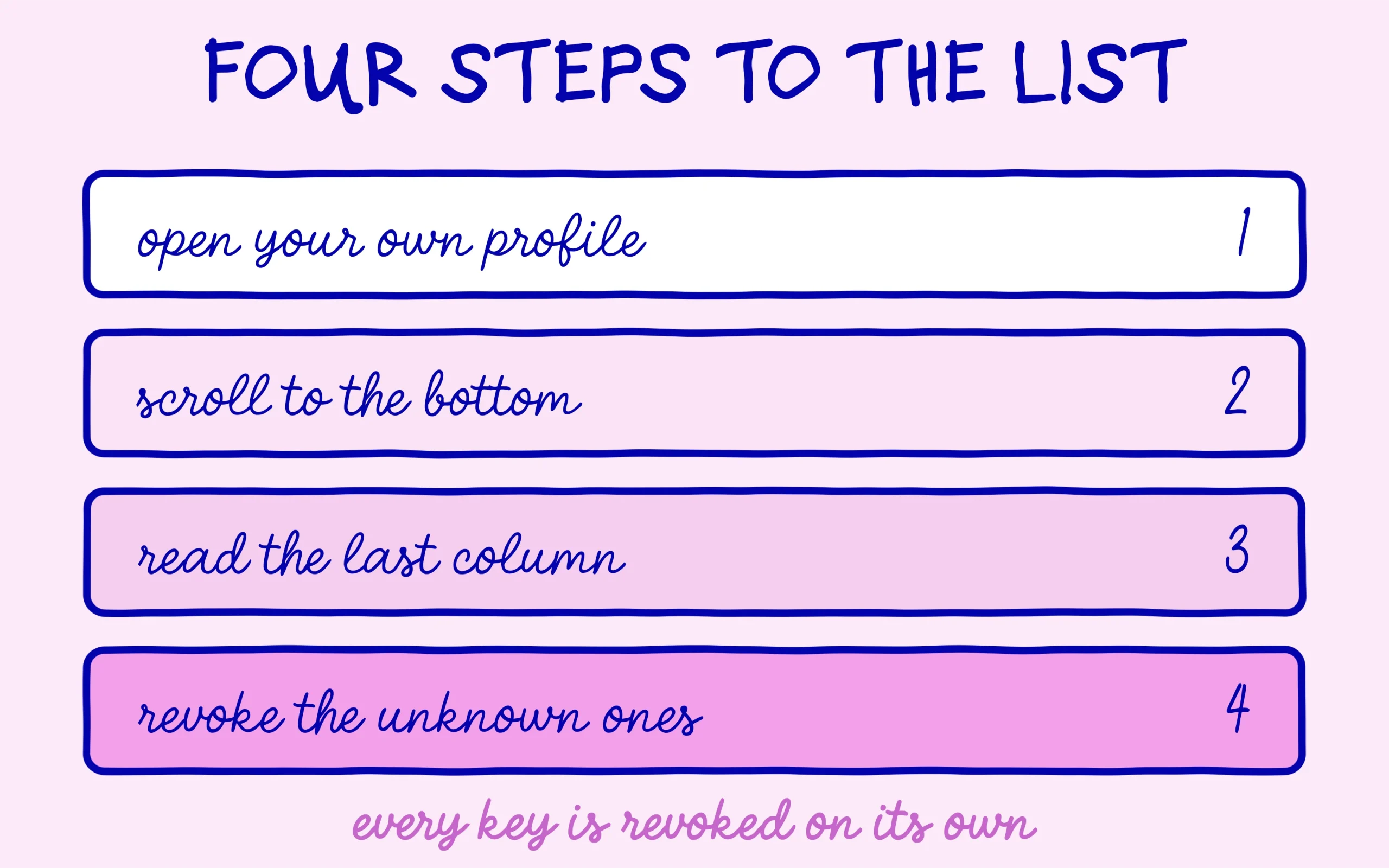
The path is short. Log into your admin, open the Users menu, then click Profile. Scroll to the bottom of the page and you will find a section titled Application Passwords. On a site where nothing was ever created, it shows the creation form and no entries underneath it.
One thing people miss on a first pass: this screen belongs to each account separately. Checking your own profile tells you nothing about the others. If your site has several users, and particularly several administrators, you need to go through Users, then All Users, open each profile and scroll down to the same section. On a personal site with a single account, the question does not arise.
Every row shows three useful things: the name given to the key when it was created, the creation date, and the last-used date with, sometimes, the address that used it. Those last two columns are your best clues. A key never used since the day it appeared has no business staying in place, whatever its name says.
If the section is missing from your profile entirely, there are two likely explanations. Either your site runs a version older than WordPress 5.6, which would be a far more urgent thing to fix. Or a security plugin has disabled the feature, which is a defensible choice on a site with no external integrations at all.
What to revoke and what to keep
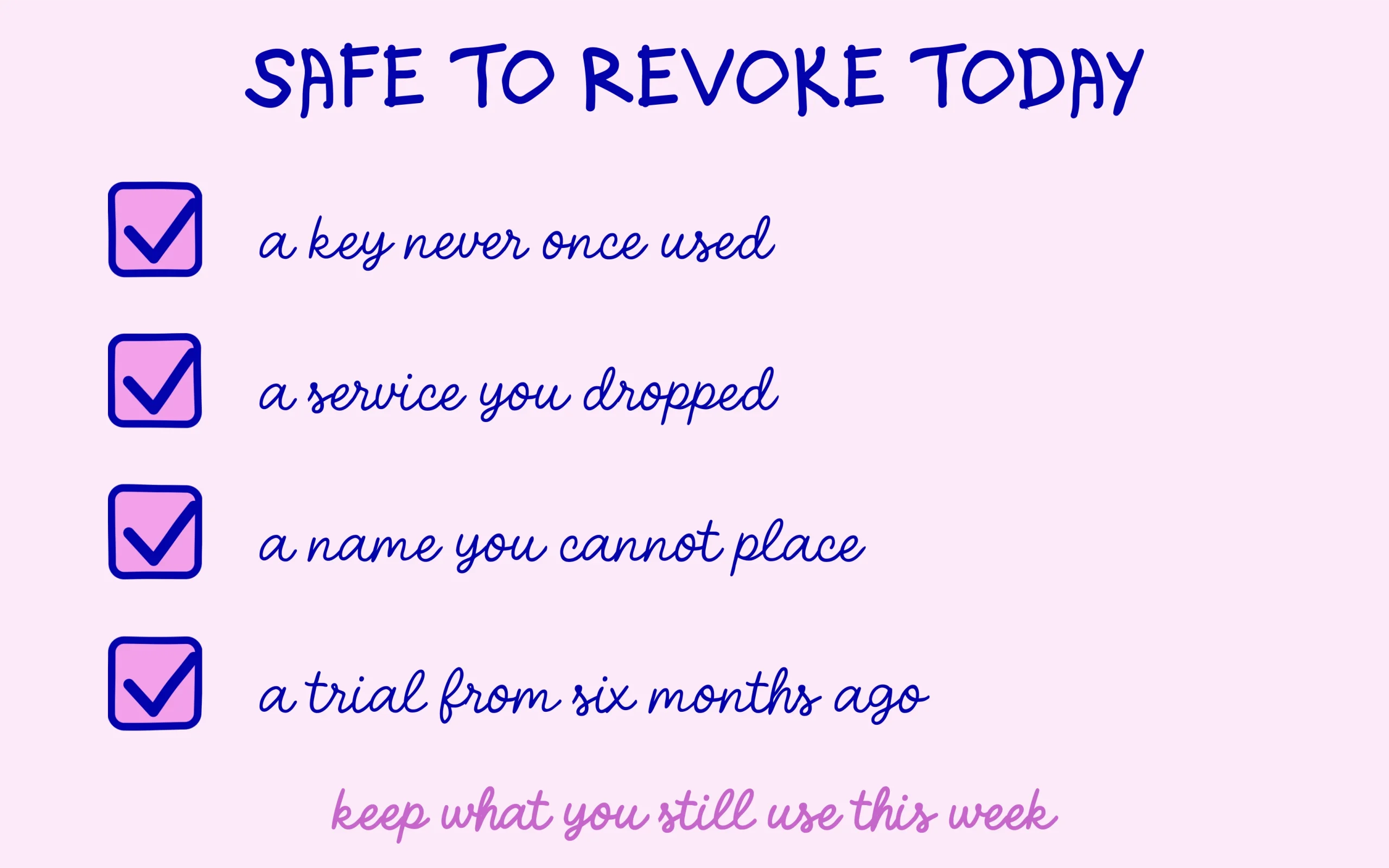
The sorting rule is simple: keep what you recognise and still use, revoke everything else. A key named after the mobile publishing app you open every week stays. A key from a service you trialled six months ago and abandoned goes. A key whose name means nothing to you goes as well.
What is reassuring about this cleanup is that it is reversible and low risk. Revoking a key breaks nothing on your public site, logs nobody out of the dashboard and touches none of your content. The only possible effect is a legitimate external tool losing its access, in which case it will ask you to reconnect and a fresh key gets issued in thirty seconds.
A handful of legitimate WordPress plugins show up in these lists often enough to be worth recognising before you click too fast. The WordPress mobile app creates one, so do automated backup tools, some scheduled publishing services and homemade scripts that push content through the technical interface. If a row matches something you are still using this week, leave it alone and move to the next.
In practice, click the revoke button to the right of the row, confirm, and you are done. The button that revokes every key at once exists too, and it earns its place in one specific case: if you have any doubt at all about your site’s security, cut everything and reconnect only what you genuinely need.
A quick check after the cleanup is worth the minute it costs. Open your site in a private window to confirm it renders normally, then glance at your usual monitoring tools. If you have Google Search Console connected to your site, confirm the property still responds, even though that particular link usually runs through a different mechanism than application passwords.
Habits worth keeping with your WordPress plugins
The first habit is about naming. When a tool asks you to create a key, give it a name that will still make sense in a year, with the service and the date in it. Something along the lines of backup-drive-2026 spares you exactly the problem you just solved, that of an unreadable row you dare neither keep nor delete.
The second concerns accounts. If an external tool only needs to read your stats or push drafts, create a dedicated account with the smallest role that does the job, and generate the key from that account. It costs five extra minutes at setup and it very concretely limits what a compromised access could do.
The third one belongs in your calendar. Come back to this screen twice a year, or after any big wave of plugin updates. It is a few minutes of checking that slots naturally into the list of things you review on a site you run alone, next to user accounts and plugins that no longer serve a purpose.
Then there is the question of trusting WordPress plugins, and it is only fair to admit the limits of this exercise. No setting replaces picking them carefully and reading what a major update actually changes. That is why an SEO plugin choice deserves proper thought rather than a quick pick, and why comparing the free tiers of Rank Math and Yoast still earns its keep.
Underneath all this, the screen says something useful about running a site as a beginner. Security is not only a matter of complicated settings, it also comes down to knowing what runs on your own property. Ten minutes spent reading a list often beats one more plugin installed for peace of mind.
Keep learning on SEO Noobies.