
The XML sitemap belongs to that short list of jobs everyone tells you to do the day your site goes live, usually without explaining what it actually changes. So most beginners install a plugin, tick a box, and never open the subject again. That is a shame, because the file doubles as a genuinely handy diagnostic tool when pages refuse to get indexed. The good news is that creating one on WordPress rarely takes more than five minutes, and submitting it to Google takes two. Here is the full procedure, from checking what your site already produces to the mistakes that keep coming back.
TL;DR
WordPress has generated an XML sitemap automatically since version 5.5, served at /wp-sitemap.xml.
An SEO plugin such as Rank Math or Yoast replaces that native file with a fuller, configurable version.
Submission happens in the Sitemaps report inside Search Console, or through one line added to robots.txt.
Google is clear that a sitemap is a hint, never a guarantee of crawling or indexing.
Summarize This Article with AI
ChatGPTWhat an XML sitemap is genuinely for
An XML sitemap is a file listing the addresses of pages you want crawled, along with the date each one last changed. Search engine crawlers can read it to discover pages they might not have reached by following your links.
Google accepts several formats: standard XML, RSS, mRSS and Atom feeds, even a plain text list of addresses. Each file is capped at 50,000 URLs or 50 megabytes uncompressed. Beyond that you split into several files and add a sitemap index that groups them, which plugins handle on their own.
The most important point is also the one most often skipped. A sitemap forces nothing. The engine states outright that submitting one is merely a hint, with no promise the file gets downloaded or used for crawling. All of it is set out in Google’s documentation on building a sitemap.
A word on the tags inside the file, since they generate a lot of false hope. The last modification date does count, provided it is honest and matches a real content update. Priority and change frequency values are explicitly ignored, as the documentation above spells out. Tuning a priority to 0.8 instead of 0.6 achieves precisely nothing, and inflating the modification date on every crawl costs the file whatever trust it had earned.
Blunt truth worth stating early: a small, well-linked site whose pages are all a few clicks from the homepage gets crawled without any sitemap. The file earns its keep on large sites, on brand new sites with no inbound links, or when some pages sit poorly connected to the rest. A sitemap helps discovery, it never replaces solid internal linking.
Its real day-to-day value sits elsewhere and gets underrated. Once submitted, Search Console tells you how many addresses the file holds and how many were discovered. The gap between those two numbers becomes a simple way to spot a crawling problem before it costs traffic.
Creating the file on WordPress in five minutes
Start by checking what already exists. Since version 5.5, WordPress produces a sitemap with no configuration at all. Type your domain followed by /wp-sitemap.xml into a browser: if a page loads with a list of links, the native file is working.
That native file does the bare minimum. It lists posts, pages, categories, tags and author profiles, with no way to exclude anything from the admin. On a young site that sweeps in archive pages of no interest to a search engine, which dilutes the signal.
Which is why an SEO plugin becomes preferable as soon as the site grows. Once installed, Rank Math in its free version and Yoast both switch off the native sitemap and serve their own at /sitemap_index.xml. The gain is control: every content type can be included or dropped from a checkbox. How the most generous free option behaves is covered in our full Rank Math review.
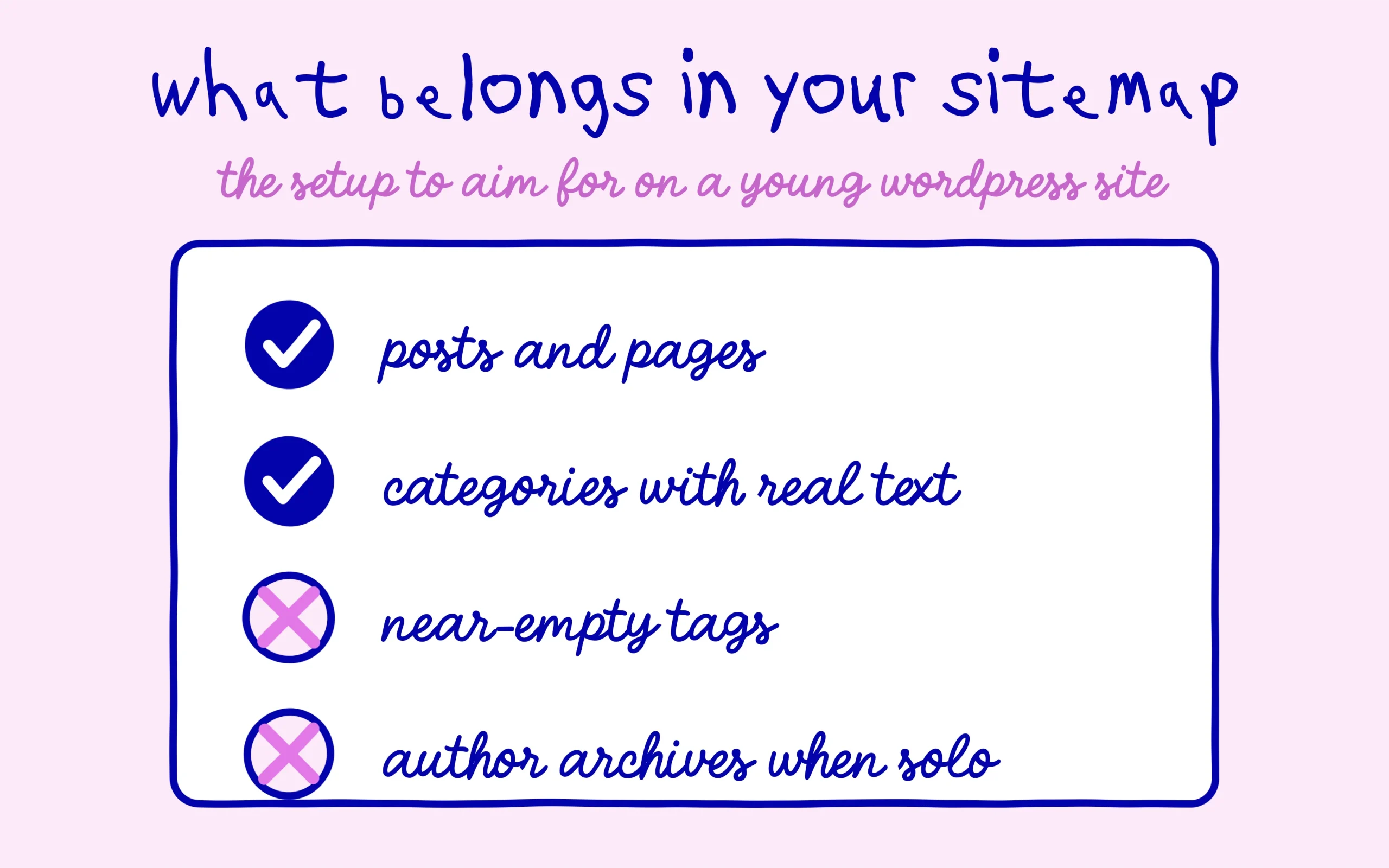
Here is the setup to aim for as a beginner. Keep posts and pages. Keep categories if they carry real editorial value and an introduction text. Drop tags while you only have a few holding one or two items each. Drop author archives if you write alone, since they duplicate the blog homepage.
A question always lands at this stage: is a dedicated sitemap plugin worth installing? Almost never. If an SEO plugin is already running, it handles the file, and stacking a second extension that builds its own sitemap leaves you with two competing files to untangle later. One generator active at a time is the simplest rule to hold.
Sites running outside WordPress deserve a mention too. On a Shopify store, a Wix site or a Webflow build, the platform generates the file itself and serves it at a fixed address, usually /sitemap.xml. Nothing to create there, just find the exact address and skip straight to the submission step below.
Once configured, open the file in your browser and read down the list. Every address in there should be a page you are happy to see turn up in search results. That review takes two minutes and heads off nasty surprises, especially on a site built from a theme that shipped with demo pages.

Submitting the file to Google in two minutes
The main route runs through Search Console. If your site is not verified in the tool yet, do that first: without a verified property there is no submission and no data to read afterwards.
Then open the Sitemaps report in the left menu, under Indexing. A field asks for the file address: enter only the part that follows your domain, so sitemap_index.xml with a plugin, or wp-sitemap.xml with the native file. Submit, and the file appears in the list below.
The status rarely flips to Success within the second. Processing for a few hours is completely normal, and the discovered URL count fills in gradually. Nothing else is needed during that wait, and resubmitting the file repeatedly speeds up nothing.
A second method exists, free and complementary: declaring the file in robots.txt. One line carrying the full sitemap address does it. Every crawler that reads robots.txt then finds the path without going through a proprietary tool, which covers engines beyond Google. Careful not to conflate the two jobs of that file, a point covered in our piece on why blocking a page in robots.txt is not the same as noindex.
SEO plugins usually add that line by themselves. Check by opening your domain followed by /robots.txt: if the sitemap reference sits at the bottom of the file, there is nothing more to do.
The sitemap mistakes that keep coming back
Far and away the most common one: leaving noindex pages inside the sitemap. You then send the engine two contradictory instructions, come and crawl this page but do not show it. Search Console flags the conflict, and excluding the content type in your plugin settings fixes it.
Second classic: submitting an http address while the site runs on https, or using the wrong subdomain. The file has to be served from exactly the same version of the domain as the one registered in Search Console, otherwise submission fails with no particularly clear explanation.
Third, and sneakier: the sitemap that quietly stops updating. It happens after a plugin swap, an over-aggressive cache or an extension conflict. Open the file now and then and check your latest published article is in there. If it is missing, clear the site cache before digging any deeper.
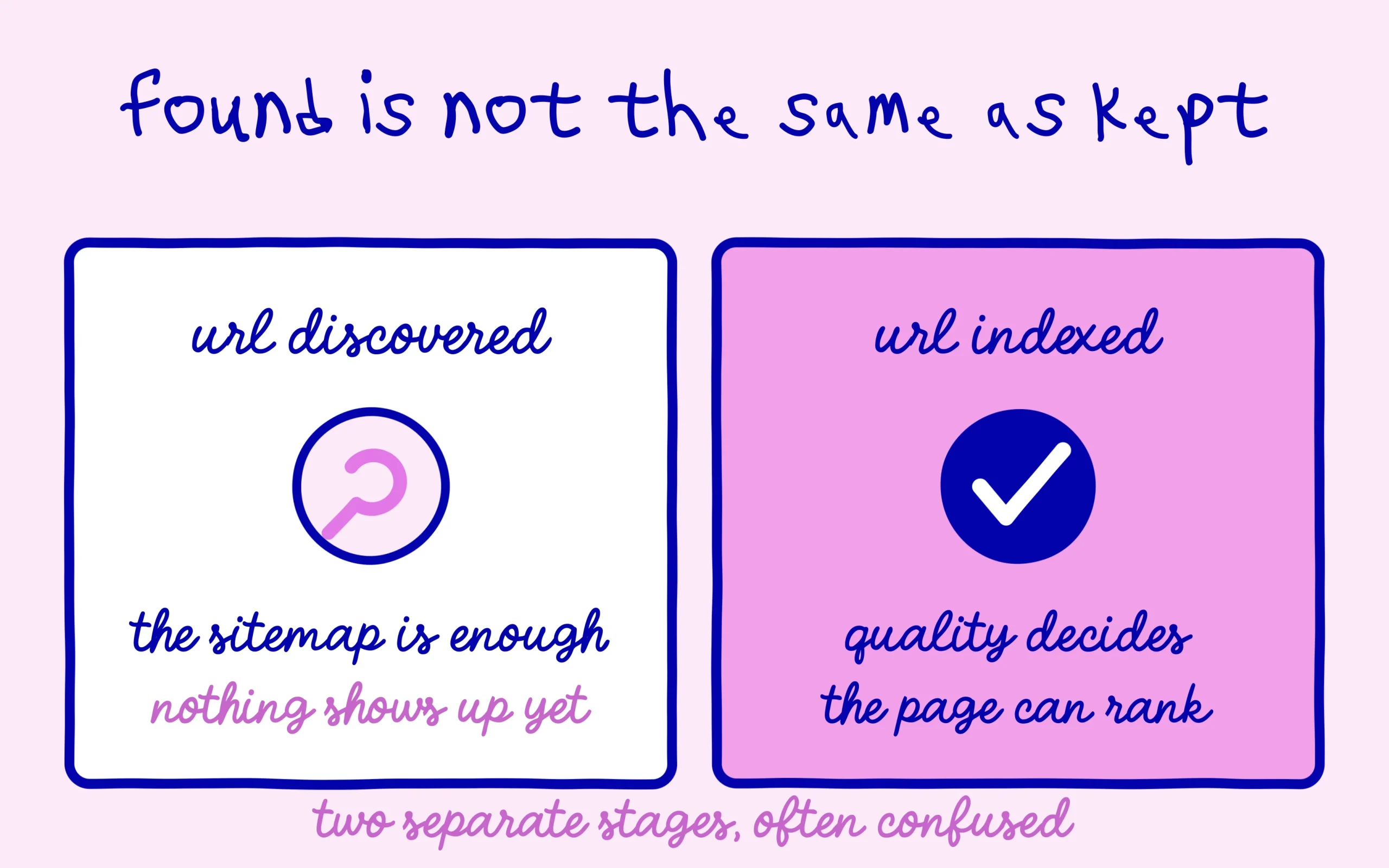
Last point, and the one that keeps expectations sane. An address sitting in your XML sitemap and discovered by Google is still not an indexed address. Those are two separate stages, and the second depends on page quality far more than on the file. Knowing how to check real indexing in Google Search Console remains the follow-up job once submission is done.
With the file in place and correct, you can leave it alone for months. A glance at the Sitemaps report each quarter is plenty, and the time saved is far better spent on the content itself.

Keep learning on SEO Noobies.
This article contains affiliate links: if you upgrade to a Pro plan through them, we may earn a commission at no extra cost to you. It changes nothing about our verdict, which is based on real use of the tool.



[…] Third screen, the sitemap. The plugin switches it on, picks its address and lets you tick the content types to include. Keep posts and pages. Keep categories if they carry genuine editorial value. Drop tags while each one only holds a content item or two, and drop author archives if you write alone. How the file works and how to submit it to Google sits in our XML sitemap tutorial. […]
[…] search is the single biggest source of frustration. If yours is not set up yet, our walkthrough on building an XML sitemap on WordPress covers the five-minute version. Once the file exists, the natural next move is to look for a speed […]