
Your tag pages fill the Search Console indexing report with dozens of URLs you never wrote: /tag/marketing/, /tag/tips/, /tag/wordpress/. WordPress generates them automatically every time you attach a label to a post. Most of them hold a single link and no writing of their own. Google crawls them anyway, sometimes files them in the index, and your site ends up weighing three times its real page count. Here is how to spot the ones causing trouble, how to pull them out of the index cleanly, and how to avoid breaking something else on the way.
TL;DR
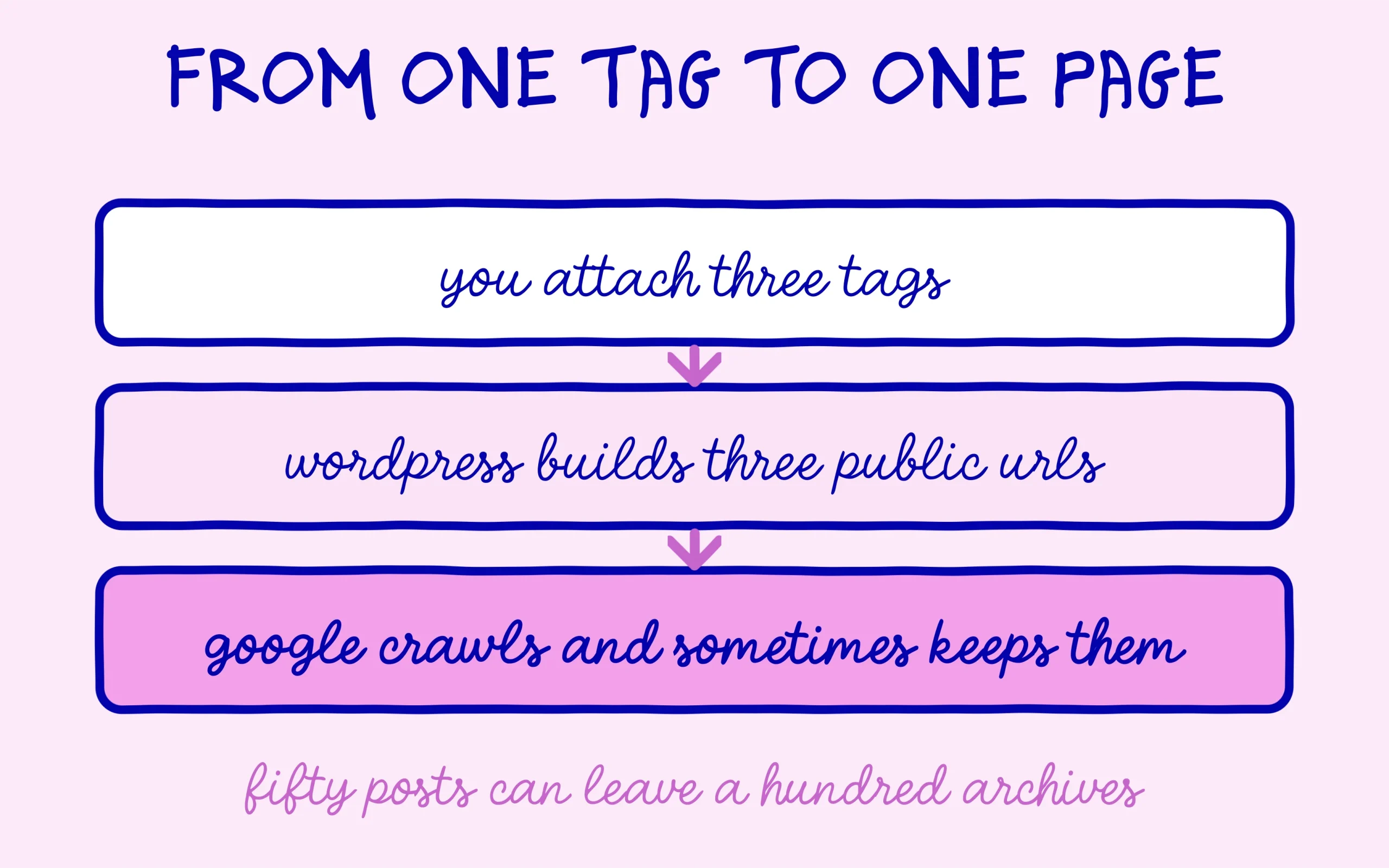
Every tag you attach to a post creates a public archive page, even when it holds one single link.
These pages carry no content of their own, so they dilute the site without ever bringing a useful visit.
Removing them from the index takes two clicks in Rank Math or Yoast, with no code involved.
Noindex alone will not finish the job: the empty tags need deleting and the useful ones need keeping.
Summarize This Article with AI
ChatGPTWhy WordPress Builds Tag Pages Without Telling You
In WordPress a tag is more than an internal filing label. It is a taxonomy, and every taxonomy term gets its own public URL. Write a post, attach the tags “seo”, “beginner” and “wordpress”, and you have just published three pages anyone can reach, each showing your post title and its excerpt and nothing else. Repeat that across fifty posts with three or four tags apiece and you comfortably reach a hundred archive pages sitting behind fifty real pieces of content.
Trouble starts once those pages enter the index. Google then has to choose between your article and an archive that repeats its title, its excerpt and nothing more. a tag page holds nothing the article does not already carry, so it can only rank behind it, or worse, instead of it on a query where it helps nobody. On a blog running two or three years without anyone watching this, finding several hundred accumulated tags is routine, and the vast majority of them gather one post each. That is a lot of crawling spent on nothing.
That said, tag pages are not all equal. A cooking blog whose “gluten free” tag pulls together forty recipes has a genuine navigation page there, useful to readers and perfectly legitimate in the index. The line falls on how many posts a tag gathers and whether real search intent sits behind the word. The rest, tags created once for a passing subject, clutters without returning anything. The reasoning matches what applies to pages Google has discovered but never indexed, except here the call is yours to make.
One confusion trips up almost every beginner, so it is worth clearing straight away: categories and tags do different jobs. A category files things, it splits the site into a handful of broad families and usually shows up in the menu. A tag connects posts sharing some cross-cutting detail, with no hierarchy at all. In practice a well-kept site runs five to ten categories and should carry far fewer tags than most sites do. When you hesitate between the two, the question is plain: would a visitor actually click that to read three more articles?
Finding The Tag Pages Google Has Already Indexed
First method, the quickest one: type site:yourdomain.com inurl:tag into Google. The list that comes back gives you an immediate sense of how many archives Google knows about. what Google displays never proves what Google kept. If dozens of /tag/ URLs show up, the clean-up is worth your afternoon. If none appear, your current settings may already be handling it, and the next check will confirm that.
Second method, the reliable one: open Search Console, go to Indexing then Pages, and read through the indexed pages list. You can filter URLs containing “tag” from the report’s own search bar. This is the source that settles the question, because it tells you what Google actually kept rather than what it happens to display today. If the exercise feels murky, the full walkthrough sits in our tutorial on checking whether Google has indexed your site.
Third check, this time inside WordPress itself: head to Posts then Tags. The right-hand column shows the post count per tag. Sort on it. Every tag sitting at zero or one is a candidate for deletion rather than merely noindex. Write down how many there are before you start, because it gives you an honest measure of the job ahead.
These three checks rarely agree with each other, and the disagreement itself tells you something. WordPress might list two hundred tags while Google shows twenty in the index and Search Console reports sixty. The gap simply reflects how far the crawler has got through your archives. Work from the WordPress figure, since it counts what exists, and treat the Google numbers as a snapshot of what has been discovered so far. Pages nobody has crawled yet will still be crawled eventually, which is precisely why fixing this before the site grows saves effort later.

The Switch To Flip In Rank Math Or In Yoast
The setting lives in the same place in both plugins, give or take a menu name. With Rank Math on its free tier, open Rank Math SEO, then General Settings, then Titles and Meta, and finally the Taxonomies tab. Pick Tags and switch the Robots Meta option to noindex. Save: two clicks handle it, no code required anywhere. If you have never opened these screens, our guide to setting up Rank Math on WordPress covers the navigation step by step.
With Yoast SEO the path runs Yoast SEO, then Settings, then Content Types and Taxonomies, Tags section. The switch is labelled “Show tags in search results” and it needs to go to Off. The plugin then drops a noindex tag onto every tag archive and pulls them from the sitemap at the same time, which is exactly the outcome you want.
Then confirm the setting actually landed. Open one of your tag pages, right-click, choose View Page Source, and search for the string noindex. It should appear inside a meta robots tag near the top of the document. One trap catches people regularly: some themes ship their own robots tag, leaving you with two contradictory declarations in the same head. When that happens, the theme’s tag is the one to remove, not the plugin’s.
Give your sitemap a look while you are there. Both plugins list tag archives inside it by default, and leaving a noindexed URL in a sitemap sends two opposite messages to the same crawler. Rank Math handles it under Sitemap Settings then Taxonomies, Yoast does it automatically once you flip the display switch off. Open your sitemap in a browser afterwards and search for “/tag/”: no URL of that shape should remain.
What Noindex Will Not Fix On Its Own
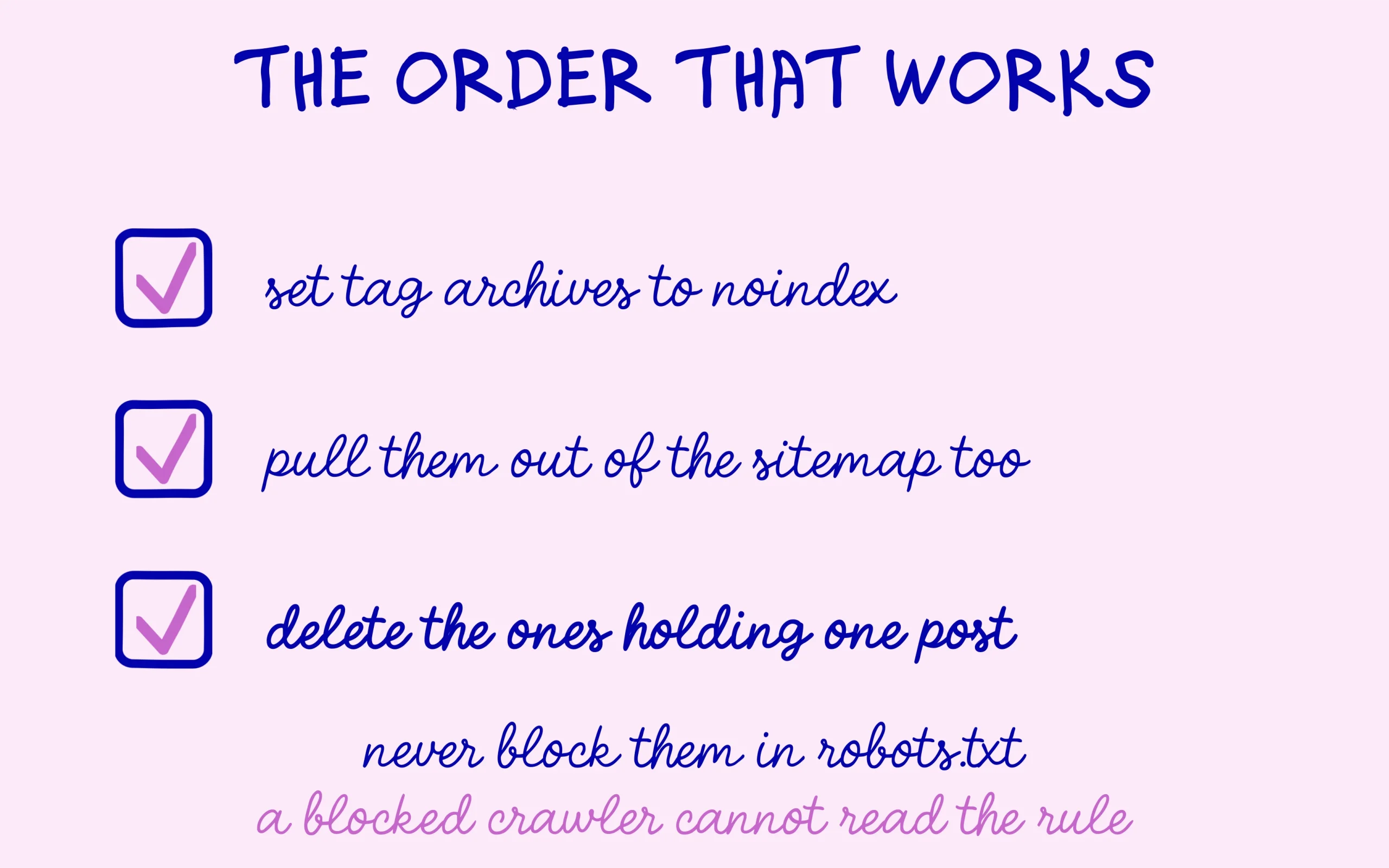
Marking a page noindex asks Google to drop it, but Google has to crawl the page again first to read the instruction. On a small site, expect several weeks before the counters move in Search Console. Whatever you do, resist blocking /tag/ in robots.txt to speed things along: a blocked crawler cannot read the noindex tag, so the page stays in the index, sometimes for months, stripped of its content. That is the single most common mistake on this topic, because a blocked crawler cannot read the instruction you left it.
Next comes the actual clean-up. Go back to Posts then Tags and delete every tag holding zero or one post. Deleting a tag never deletes the post attached to it, so the operation carries no risk. Merge the obvious duplicates too, the “seo” and “SEO” and “seo tips” trio that spawns three archives for one subject. A tag worth keeping gathers enough posts to make a real reading list.
One precaution before deleting in bulk: if a tag appears in a link you placed inside one of your own posts, deleting it leaves a dead link behind. Run a search for “/tag/” across your post content first, the WordPress admin search does the job. The case stays rare, since most tag links come from the theme itself, but checking beats discovering it in an error report three months later.
Watch out for one special case before you wrap up. If one of your tag pages already pulls visits from Google, it will show up in the Performance report in Search Console. Filter pages on “/tag/” before flipping everything, and check whether any of them brings real clicks. The situation is uncommon but it happens, particularly on older blogs where a well-stocked tag eventually found a position. When it does, keep that one indexed and give it a genuine intro paragraph, which turns it into a legitimate navigation page.
A word on what Search Console will show you afterwards, because the reading surprises people. Your not-indexed page count will climb, and the “Excluded by noindex tag” bucket will fill up. That is the expected outcome rather than a problem. The number to follow is the indexed pages figure: it should drift towards the real count of articles and pages you have written. A gap that narrows over two or three months means the clean-up did its job.
Finally, build the habit of restraint when you publish. Three to five tags cover most posts, and a brand new tag only earns its place if it will serve several articles. A tag invented for one subject mechanically produces one more empty page. The reflex costs two seconds at publishing time and saves you redoing this clean-up next year.
How This Plays Out With Generative Engines
The question applies to ChatGPT, Perplexity and Google’s AI Overviews too, since they crawl the web with their own bots. An archive page repeating a title and an excerpt gives them nothing to quote, because they hunt for a passage that answers a question rather than a list of links. A tag left in the index will not get you cited by accident: it eats crawl budget your real pages never see.
What that changes in practice: the page worth your care stays the article, and a tag archive earns its existence only when a human has a reason to browse it. You can run the test yourself in about a minute, no tool required. Open one of your tag pages, read it as though you had landed on the site for the first time, and ask honestly what it taught you. If the answer amounts to a shrug, it has no business sitting in Google’s index.

Keep learning on SEO Noobies.
This article contains an affiliate link. It costs you nothing extra and helps us keep the site free.