
Breadcrumbs are that small clickable line at the top of an article showing where the page sits on your site, something like Home, then the category, then the title. Plenty of recent WordPress sites don’t show them anywhere, even though a visitor landing from Google has no idea which section they just walked into. The good news is that the Rank Math plugin can generate both that navigation and the markup behind it, and in most cases without touching your theme’s code. A few settings are worth understanding, and there is one display choice to make depending on your theme. Here is the full path, from switching the feature on to checking the result in Google’s own testing tool.
TL;DR
A breadcrumb trail shows where a page sits in your site and gives Google a clear reading of your structure.
In Rank Math, the feature lives in the general settings and only works once the Schema module is on.
Display goes through a shortcode, a Shortcode block in the editor, or a PHP function in the theme, depending on your setup.
The BreadcrumbList markup can be checked in seconds with Google’s Rich Results Test.
Get an AI summary of this article
What Breadcrumbs Actually Do on a WordPress Site
The idea is simple. The trail displays the route from your homepage to the page being read, through the sections in between, and every step is clickable. Someone arriving on an article from a search engine can jump back to the category in one click, find other posts on the same topic, and understand right away what kind of site they are on. For a reader who arrived through a single search, that context is often the difference between leaving and reading a second page.
Google explains the role of this markup in its official documentation on breadcrumb structured data. It says a breadcrumb trail indicates the page’s position in the site hierarchy and may help users understand and explore a site effectively. The same page notes that the feature is available on desktop in all regions and languages where Google Search is available.
So two different things hide behind one word. There is the visible navigation that readers see and click at the top of the page. And there is invisible markup, a small block of structured data that describes the same route to search engines in a format they can parse. The free version of the Rank Math plugin produces both, but they are not switched on in the same place, which explains most half-finished setups.
It is also worth being clear about what this feature won’t do. No Google documentation presents it as a ranking lever, and nobody should promise you positions because you turned it on. Its value lies in making the site easier to read for people and for crawlers, much like the other structural settings covered in our full Rank Math review. A readable structure helps every page find its place.
One prerequisite deserves a look before you start. Breadcrumbs are only as useful as your categories. A site where everything sits in Uncategorized will produce a route that tells nobody anything. If that sounds like yours, create two or three categories that genuinely match your topics and move your existing posts into them first.
Turning the Feature On in Rank Math’s General Settings
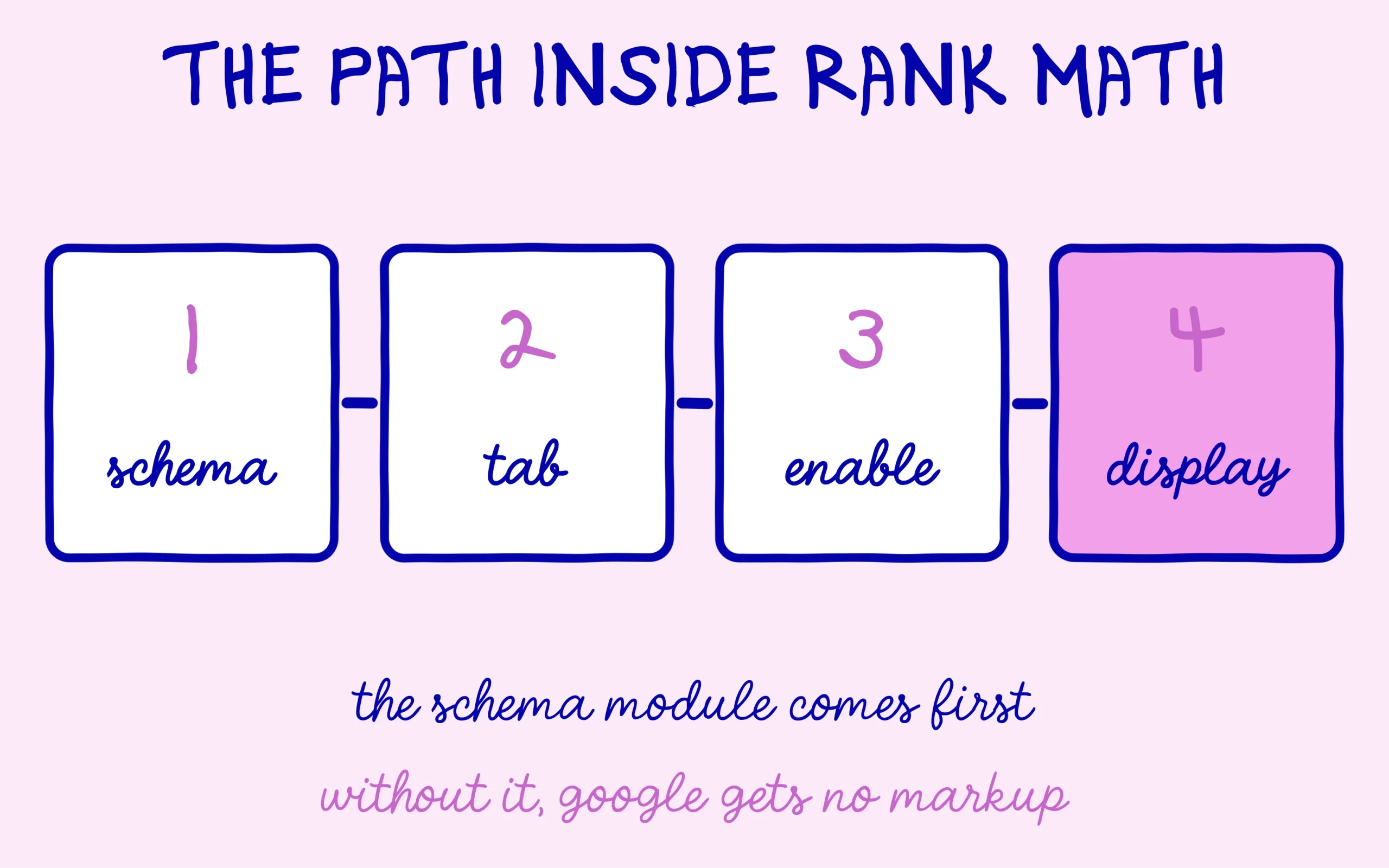
Everything happens in the WordPress dashboard. The free plugin covers this whole tutorial, since the documentation only reserves the Elementor widget mentioned further down for paid users. If you are starting from scratch, run the setup wizard first, which is covered step by step in our guide on setting up Rank Math on WordPress.
The starting point is the Schema module. From the Rank Math SEO menu, open the modules dashboard and make sure the structured data module is active. Rank Math’s knowledge base article on this feature lists that step as a prerequisite, and states that breadcrumb schema is added automatically once the module is enabled. Without it, you get visible breadcrumbs with none of the markup Google reads.
According to the documentation, you may then need to switch the plugin to Advanced Mode, because the simpler mode hides part of the options. The switch sits on Rank Math’s own dashboard.
Now open the right tab. The path given in the documentation is Rank Math SEO, then General Settings, then Breadcrumbs. A toggle at the top of that tab enables the feature, and the customization options only appear underneath once it is on.
Save before going any further. Nothing changes on your site yet, and that is expected. Enabling the feature never displays it on its own. The plugin prepares the route and the markup, but your theme, or a block you add, decides where the line shows up on the page.
Picking the Separator, Home Link and Category Display
Once the toggle is on, the Rank Math documentation lists about a dozen options. Most can stay on their defaults, but four deserve a real decision because they change what readers see. The separator character comes first. A simple arrow or chevron reads well on mobile, and the plugin also lets you type a custom one.
Next comes the homepage. The Show Homepage Link option adds the first step of the route, and a separate field lets you change its label, which defaults to Home according to the documentation. On a site written in another language, translating that label avoids an odd English word at the start of every article.
Showing the category in post trails is the setting that makes the whole feature worthwhile on a blog, since it slots the section between the homepage and the title. If a post belongs to several categories, check a few examples to see which one appears, and tighten your categorization if the result looks inconsistent.
The last one to settle is Hide Post Title, which removes the article title from the end of the route. Some themes already print the title in large type right below, and repeating it in the line above feels heavy. Others prefer the complete route. Neither choice is wrong, it is a matter of how it looks on a real article.
Less visited pages get their own options: a prefix such as You are here, the format of archive and internal search pages, the 404 label, and whether to show taxonomy names or the blog page. The one point to watch concerns category and tag archives. If you chose to keep them out of the index, as we recommend in our tutorial on noindexing tag pages on WordPress, the navigation will still lead readers there, which causes no problem at all.
Discover the SEO Noobies agency

Displaying the Trail Through Your Theme, a Block or Code
This is the step where most setups stall. Rank Math offers three ways to show the route, and the right one depends entirely on your theme. The documentation first notes that some themes support Rank Math’s navigation natively by declaring it in their code. If yours does, the line appears as soon as the feature is on, with nothing to add. So look at an article in a private window before touching anything.
Nothing showing and your theme works with the site editor? The cleanest method then goes through a block. Open the site editor, then the template used for single posts, and add a Shortcode block just above the title. Paste rank_math_breadcrumb inside square brackets, exactly as written in the documentation. The template applies to every post at once, which spares you from editing each article individually.
With a classic theme that has no site editor, the documentation provides a PHP function to place in the single post template, usually just before the title. That method means working inside theme files, so it belongs in a child theme, otherwise the change disappears at the next update. Always back up the site before editing theme files. If those words make you nervous, adding the Shortcode block manually inside an article remains a fallback, less elegant but risk free.
For Elementor builds, the documentation mentions a dedicated widget available to users running both Rank Math PRO and Elementor Pro. Without those two subscriptions, Elementor’s own Shortcode widget accepts the same bracketed code and gives the same result on screen.
A common trap shows up here. Some themes already print their own breadcrumbs, independent of any plugin. Adding Rank Math’s on top produces two nearly identical lines stacked on each other, and sometimes two competing pieces of markup. If you see that duplicate, switch one off in the theme settings or in the plugin, and keep whichever looks better.
Checking the BreadcrumbList Markup With Google’s Tool
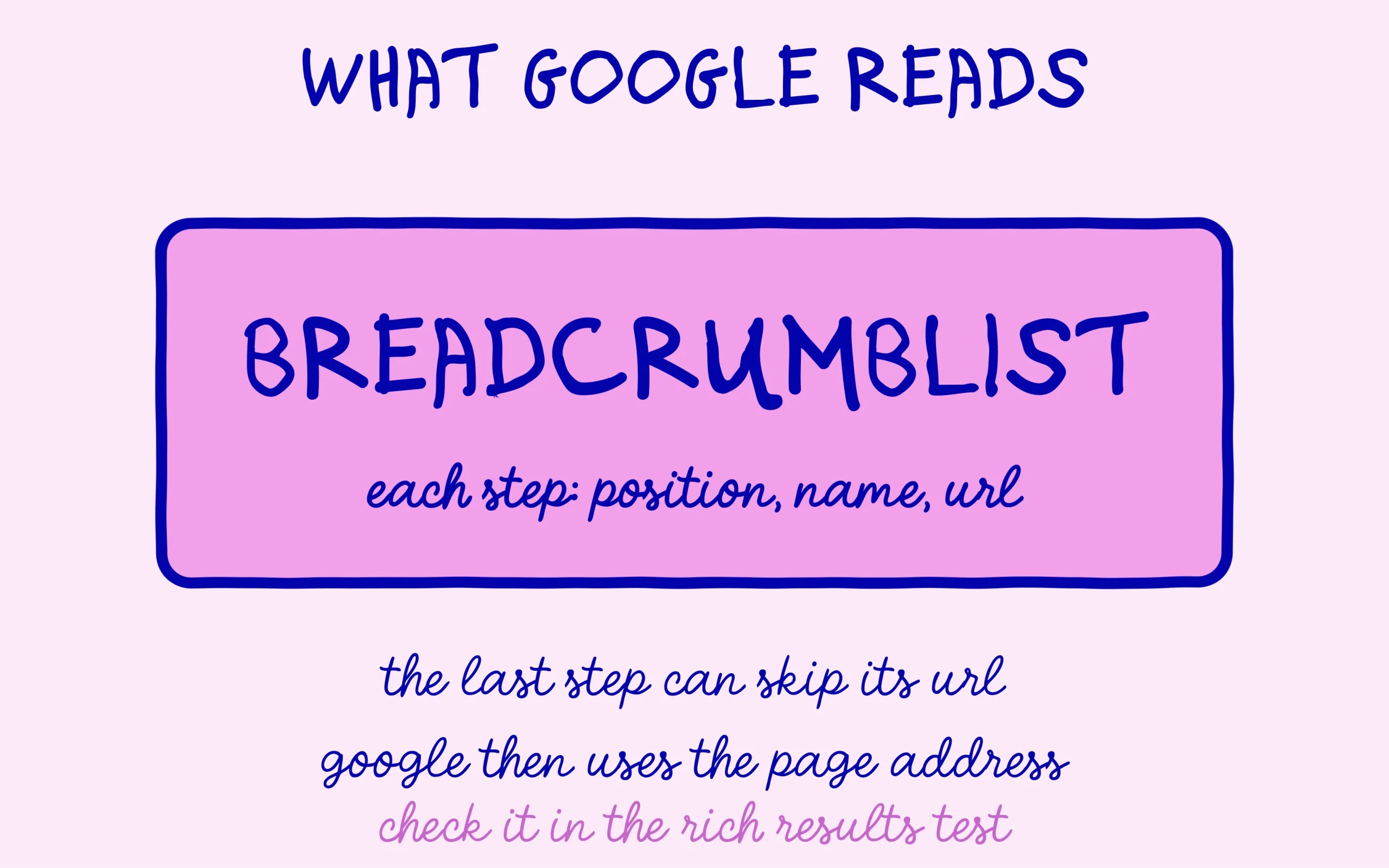
The visible navigation can be checked by eye. The markup needs a tool, and Google provides a free one, the Rich Results Test, which its documentation recommends for validating this kind of code. Copy the address of a published article, paste it into the tool, and run the analysis. The report lists the items detected on the page.
What you are looking for is an entry for breadcrumbs marked as valid. Open it and you will find each step of the route with three pieces of information: its position, starting at 1 for the beginning of the trail, its name as displayed, and the URL of the matching page. Google’s documentation says the last step may omit its URL, in which case the search engine uses the URL of the page being tested.
When the tool detects nothing of the kind while the line shows fine on screen, the Schema module is almost always the cause, so go back to the first step and confirm it is active. If the tool finds two, you are in the theme duplicate case described above. Other structured data errors read the same way, and our tutorial on fixing structured data errors Google rejects covers the most frequent messages.
Test at least three different pages before calling it done: a post filed under one category, a post filed under several, and a static page such as your contact page. Those are the three cases where the route gets built differently, and an inconsistency nearly always surfaces on one of them.
One last point is patience. Markup that passes the test does not appear in search results immediately, since Google has to come back to your pages first. Nothing guarantees either that the search engine will show the route for a given query. The job is done when the navigation displays correctly and the tool validates the code, and that part is entirely in your hands.

Keep learning on SEO Noobies.
This article contains affiliate links: if you go through our links to Rank Math, SEO Noobies may earn a commission at no extra cost to you.