
If you want to block GPTBot, the crawler OpenAI sends across the web to gather training material for its models, you are far from alone. Plenty of site owners would rather their writing didn’t feed AI training, while still showing up when someone asks ChatGPT a question. You can have both, as long as you know that OpenAI runs several separate crawlers and that each one is handled on its own line. A single wrong line in robots.txt can quietly remove a site from ChatGPT’s answers, and nobody notices for weeks. Here is how to write the right rule, edit it on WordPress, and check that it works, one step at a time.
TL;DR
OpenAI runs four crawlers: GPTBot for model training, OAI-SearchBot for ChatGPT’s search answers, plus ChatGPT-User and OAI-AdsBot for other jobs.
Blocking GPTBot keeps your site in ChatGPT’s search answers, while blocking OAI-SearchBot takes it out, according to OpenAI’s documentation.
On Google’s side, the Google-Extended rule covers Gemini training and has no effect on whether your site appears in Google Search.
On WordPress, Rank Math lets you edit robots.txt from the dashboard, and OpenAI says changes take about 24 hours to kick in.
Get an AI summary of this article
OpenAI’s four crawlers and what each one does
A crawler is a program that visits the pages of a website to read their content. It identifies itself on every visit with a name, called a user agent, and that name is what you write in your robots.txt file to give it instructions. The robots.txt file is a plain text file at the root of your site, which crawlers read before going through your pages.
OpenAI lists its crawlers in its official documentation on web crawlers. GPTBot crawls content that may be used to train OpenAI’s generative AI models. OAI-SearchBot is used to surface websites in ChatGPT’s search features, meaning the answers that cite sources with a link. Both of them follow robots.txt.
The other two crawlers have different jobs. ChatGPT-User steps in when a person asks ChatGPT, or a custom GPT, to go and read a specific page. OpenAI notes that robots.txt rules may not apply to it, since it acts on a user’s request, and that it is not used to decide whether content can appear in search. OAI-AdsBot checks the safety of pages submitted as ads in ChatGPT.
These names also show up in your host’s visit logs, which record every request made to your site. OpenAI’s documentation gives the full signature of each crawler: GPTBot’s includes “GPTBot/1.4” followed by a link to openai.com/gptbot. If your host gives you access to those logs, a quick search for that word shows how often the crawler comes by, even before you decide anything.
This split matters a lot for a site owner. The single name ChatGPT actually covers two very different uses of your content: training future models on one side, and live search with citations on the other. Each OpenAI crawler gets its own line in robots.txt. That is exactly what lets you block GPTBot while keeping the door open to search answers.
How to block GPTBot and stay in ChatGPT’s answers
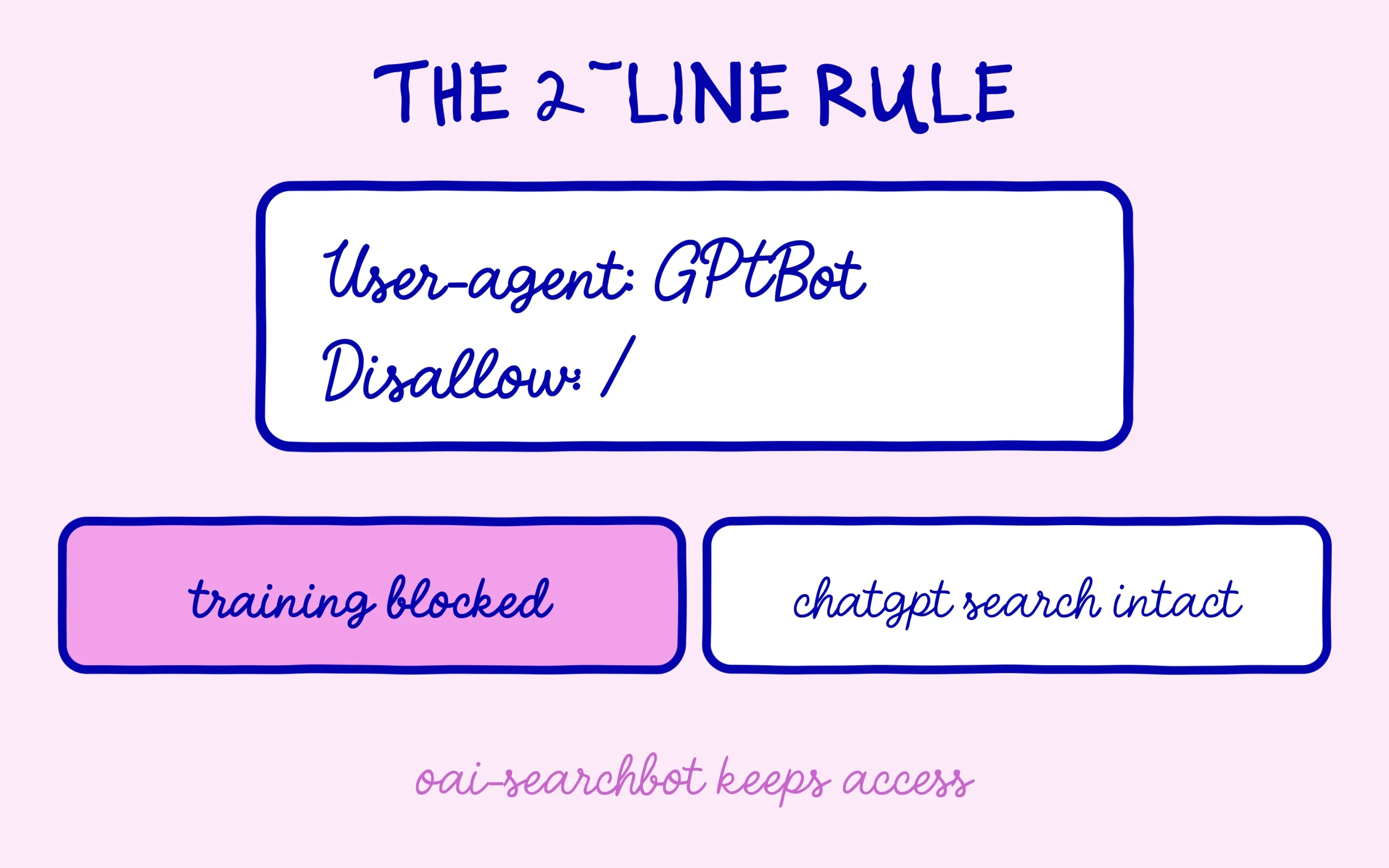
The rule to block GPTBot fits in two lines. The first names the crawler, the second closes the whole site to it, since “/” stands for the root and everything under it.
User-agent: GPTBotDisallow: /
Those two lines are enough, and their whole point is that they only name GPTBot. OAI-SearchBot, which isn’t mentioned, keeps its access to your pages and can keep featuring them in ChatGPT’s answers. OpenAI’s documentation is clear here: sites that opt out of OAI-SearchBot will not be shown in ChatGPT search answers.
The common mistake is to block every OpenAI crawler at once, or to paste a list from a forum that includes OAI-SearchBot without saying so. The site then drops out of ChatGPT’s search answers, often with the owner only connecting the dots weeks later. Before saving a robots.txt file, read every crawler name in it and ask yourself what you actually want to keep it from doing.
You can also target only part of your site. Replace the “/” with a folder path, such as “Disallow: /blog/”, and GPTBot will stop reading your blog posts while still reaching the rest of the site. That option suits sites that want to protect specific content, such as long guides or carefully written product pages, while leaving the main pages open. For most small sites, though, blocking GPTBot across the whole site is the easiest setup to read and maintain.
It also helps to remember what robots.txt can do. It tells a crawler which pages it may read, and that is all. Blocking GPTBot today stops its future visits, and anything collected before stays where it is. Robots.txt also won’t remove a page from a search engine, a point covered in the piece on why blocking a page in robots.txt is different from noindex. Robots.txt controls which pages a crawler can visit.
Discover the SEO Noobies agency
Google’s case: Google-Extended leaves Search alone
Google offers a similar setting for its Gemini AI, though it works differently. Google-Extended is not a crawler that visits your site: it is a name you write in robots.txt to say whether content Google crawls from your site may be used to train future Gemini models.
Google’s documentation on its crawlers states that Google-Extended does not affect a site’s inclusion in Google Search and is not used as a ranking signal. The rule is written the same way as for GPTBot, with Google-Extended in its place.
User-agent: Google-ExtendedDisallow: /
Whatever you do, avoid blocking Googlebot, Google’s main crawler, as a way to keep away from AI. Googlebot powers regular search, and blocking it would take your site out of Google entirely. For a new site counting on Google to get found, that would be the worst possible move.
Editing robots.txt on WordPress with Rank Math
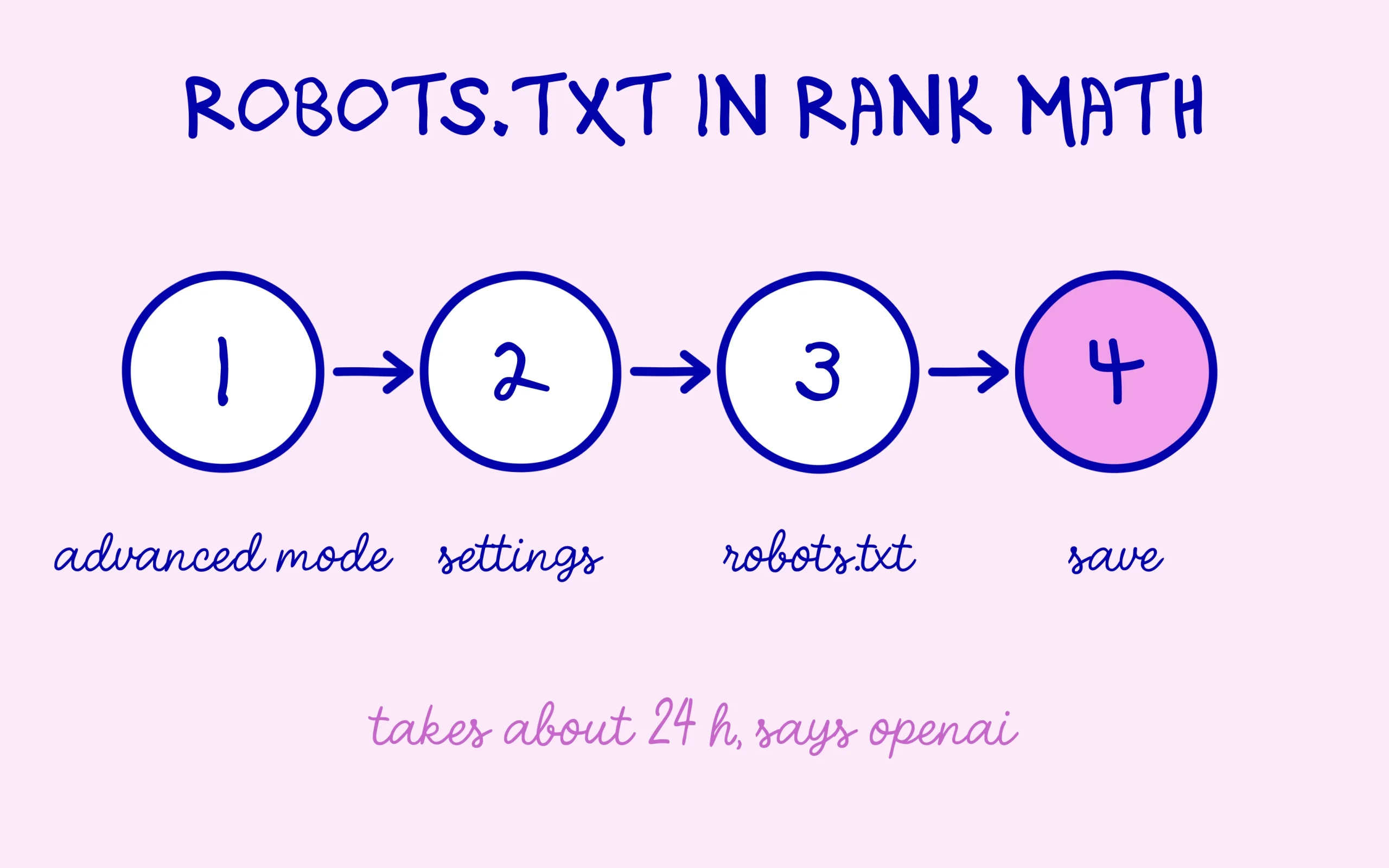
On WordPress, the easiest route goes through the SEO plugin many sites already use. With the free version of Rank Math, you can edit robots.txt straight from the dashboard, with no extra software and no server access. Rank Math’s guide to editing robots.txt walks through the steps.
Start by switching on Advanced Mode with the toggle in the top-right corner of the Rank Math page. Then go to Rank Math SEO, General Settings, Edit robots.txt. A text editor opens with the current content of the file. Add the two lines of the rule at the end, with a blank line before them, and save.
One frequent snag can block this step. If a real robots.txt file already sits on your server, Rank Math’s editor stays read-only, because a physical file always wins over the one the plugin creates. Rank Math says you then need to delete that file from your site’s root folder, using FTP or your host’s file manager. If that feels uncomfortable, your host can usually do it for you.
On a site without Rank Math, the principle stays the same. The robots.txt file lives at the root of the site, at the same level as the wp-content folder. Open it with any text editor, add the rule to block GPTBot, and save it.
Checking that the rule works
The first check takes ten seconds. Type your site’s address followed by /robots.txt in your browser, for example yoursite.com/robots.txt, and make sure both lines are there. Also check that no other line disallows OAI-SearchBot, and that no general rule blocks every crawler at once.
Then give it a little time. OpenAI says it can take about 24 hours after a robots.txt update for its systems to adjust. There is no need to keep editing the file during the day thinking nothing is happening.
A few days later, a simple test confirms you are still visible. Ask ChatGPT, with search turned on, a precise question that one of your pages answers well, and see whether your site appears among the sources. If it does, the rule to block GPTBot is doing its job without costing you your place in the answers. For another common obstacle to how AI reads your pages, the piece on AI crawlers missing content loaded with JavaScript is worth a look.
One question is worth settling before you touch the file: should you block GPTBot at all? That part is up to you. Blocking it says you don’t want your writing used to train OpenAI’s models, and it costs you nothing in ChatGPT’s search answers as long as OAI-SearchBot stays allowed. Letting GPTBot in is just as reasonable for a site that wants the models to know its brand. Both settings make sense, and what matters is choosing with a clear view of what each line does.
One last tip applies to every site. Keep a note of the date of each robots.txt change and the reason behind it. The day your traffic or your citations shift, that small record lets you check in a minute whether a new rule had anything to do with it.
Check You Can Set Up OpenAI’s Crawlers
Which OpenAI crawler collects content to train its models?
Show answer
GPTBot. It is the one targeted by the rule “User-agent: GPTBot” followed by “Disallow: /” in robots.txt.
What happens if your robots.txt blocks OAI-SearchBot?
Show answer
OpenAI’s documentation says sites that opt out of OAI-SearchBot will not be shown in ChatGPT search answers. Blocking GPTBot alone keeps that door open.
Does the Google-Extended rule change your place in Google?
Show answer
It has no effect there: Google’s documentation states that Google-Extended does not affect a site’s inclusion in Google Search and is not a ranking signal. It covers training for Gemini models.
Why might Rank Math’s robots.txt editor stay read-only?
Show answer
Because a real robots.txt file already sits on the server and takes priority over the plugin’s version. Rank Math says to delete it from the site’s root folder using FTP or your host’s file manager.
Get Your robots.txt Checked by the Agency
If you’d rather have a professional handle it, the SEO Noobies agency’s express package, at €799, checks and fixes AI crawler access in your robots.txt along with the other blocking technical errors, within three business days of receiving your access details.
Keep learning on SEO Noobies.
This article contains affiliate links. It costs you nothing extra and helps us keep the site free.